
Opening Your Telegram Account on a Computer or a Phone
October 19, 2026
BuyTelegram Help· Customer support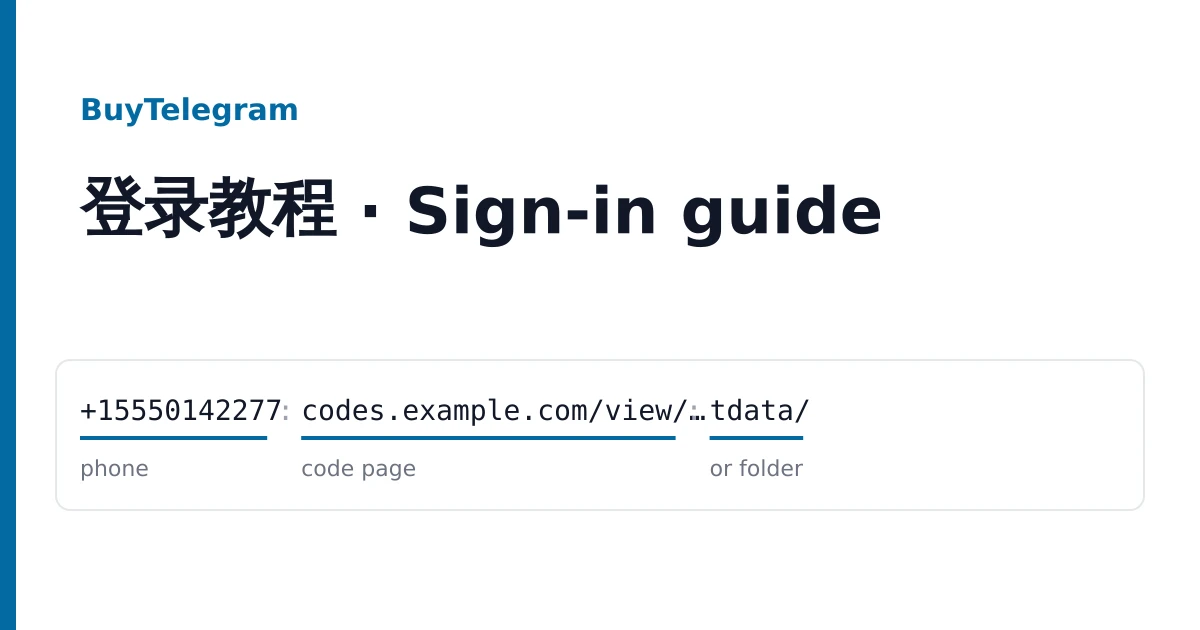
A Telegram account lives on a phone number, so what you receive is a way into a session that already exists: a folder of files, or a number with a page that shows its login code. Both appear on your order page. Keep them private; whoever holds them can open the account.
| You will use | Pick listings with | What arrives |
|---|---|---|
| A computer | TDATA, or TDATA + session + JSON | A download link to an archive with a tdata folder |
| A phone | Login by code, or "phone code login" | A phone number and a link to a code page |
| Your own software | Session + JSON | .session and .json files in the same archive |
On a computer: the tdata folder
- Install Telegram Desktop from telegram.org and start it once, then close it completely (also from the system tray).
- Download the archive from your order and unpack it. Inside is a folder named
tdata, and often a text file with the cloud password. - Open Telegram Desktop's data folder. On Windows that is
%AppData%\Telegram Desktop. Rename thetdatafolder already there (for example totdata-old) and copy the delivered one in its place. - Start Telegram Desktop. It opens straight into the account.
One account per tdata folder. For several accounts, use the portable version of Telegram Desktop in separate folders, each with its own tdata.
On a phone: number and code page
The delivery reads like this (invented):
+15550142277|https://codes.example.com/view/9f3c2a71-5d1e-4b8a-a6c4-2e7f0b9d1c55- In the Telegram app, choose to sign in and type the number from before the bar, with its country code.
- Open the link after the bar. When Telegram sends the code, it appears on that page within a minute or so. Refresh once if it is not there yet.
- Type the code into the app. If the account has a cloud password, Telegram asks for it next; it is in the delivery or the listing notes.
Use the code page as soon as the order arrives. It is there for the first sign-in, not as a permanent inbox for that number.
Session + JSON files
These are for programs that read Telegram session files. The .json file usually carries details such as the number and the cloud password. We do not recommend or support particular tools; if your software cannot read the files, open the account through the tdata folder instead.
Handing the account over to yourself
- Sessions. Settings, Devices: terminate all other sessions. On a new sign-in Telegram may hold this back for a while; do it as soon as it allows.
- Cloud password. Settings, Privacy and Security, Two-Step Verification. Change the delivered password, or set one if there was none, and add a recovery email you control.
- Profile. Change the name, username and photo if you want, one at a time.
Telegram's 2FA is the cloud password you type, not a six-digit authenticator code, so no code generator is involved. Telegram may ask any account to verify again or limit it; use the account within Telegram's terms. Mass messages, mass invites and bots lead to bans that the warranty does not cover.
Before you report a problem
- Desktop shows the login screen: Telegram Desktop was still running when you swapped folders, or the folder landed one level too deep. Close it fully and check that
tdatasits directly in the data folder. - No code on the page after a few minutes: ask Telegram to resend once, then stop. Repeated requests can block sign-in for hours.
- The cloud password is refused: copy it again from the text file without spaces, and check for a second password line.
- "This account is banned" or a frozen notice: take a screenshot straight away.
Then open a ticket from your order page inside the warranty window on the listing. Give the phone number, which way you signed in, and the screenshot. A faulty account is replaced from the same listing; signing in does not void the warranty. To grow a channel run from the account, see the growth services listed on the home page.